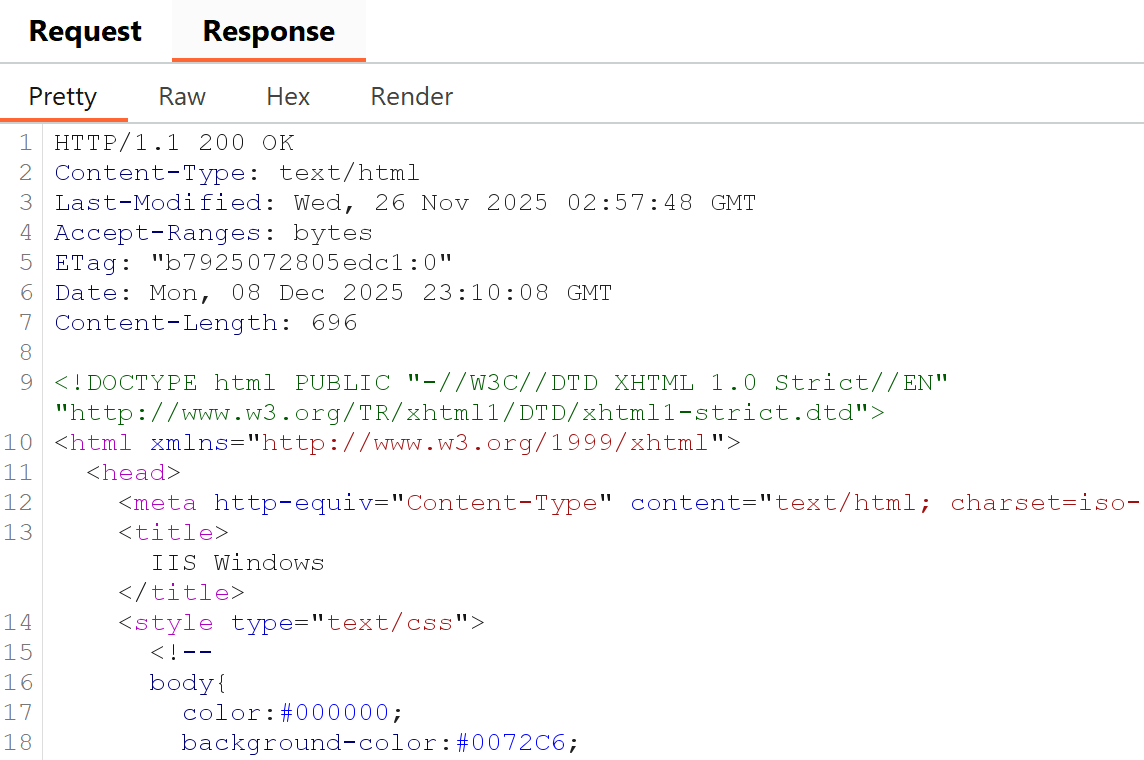
They are not the hero of a vulnerability scan, yet they can still make it into a penetration test report. Server headers and extra information returned from a web server appear in response headers.
In most cases they will not lead to your server being hacked, especially if you keep software updated. Yet in special cases they can give enough information to suggest an old, vulnerable version. If it is anything like recent web server bugs, you may be in for unwanted overtime.
Let's have a look at Windows IIS and an example of what is returned from the server and how to fix it.
Windows IIS
A quick web server shows Server: Microsoft-IIS/10.0 in responses.
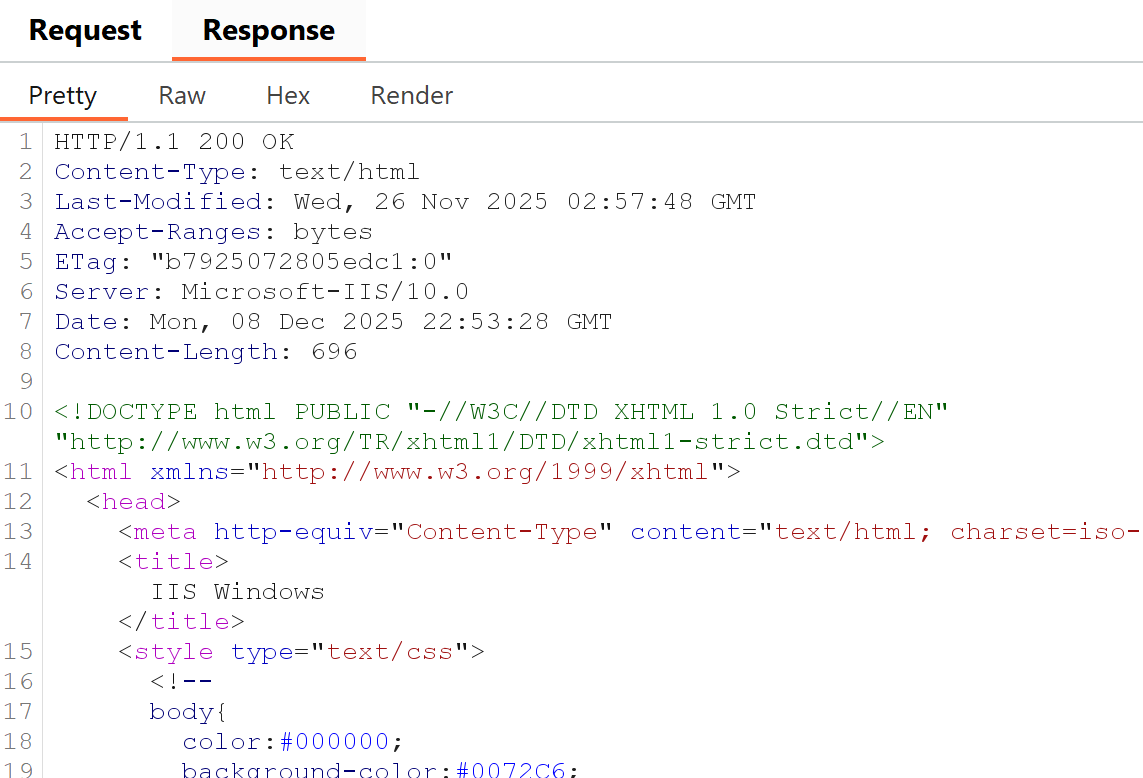
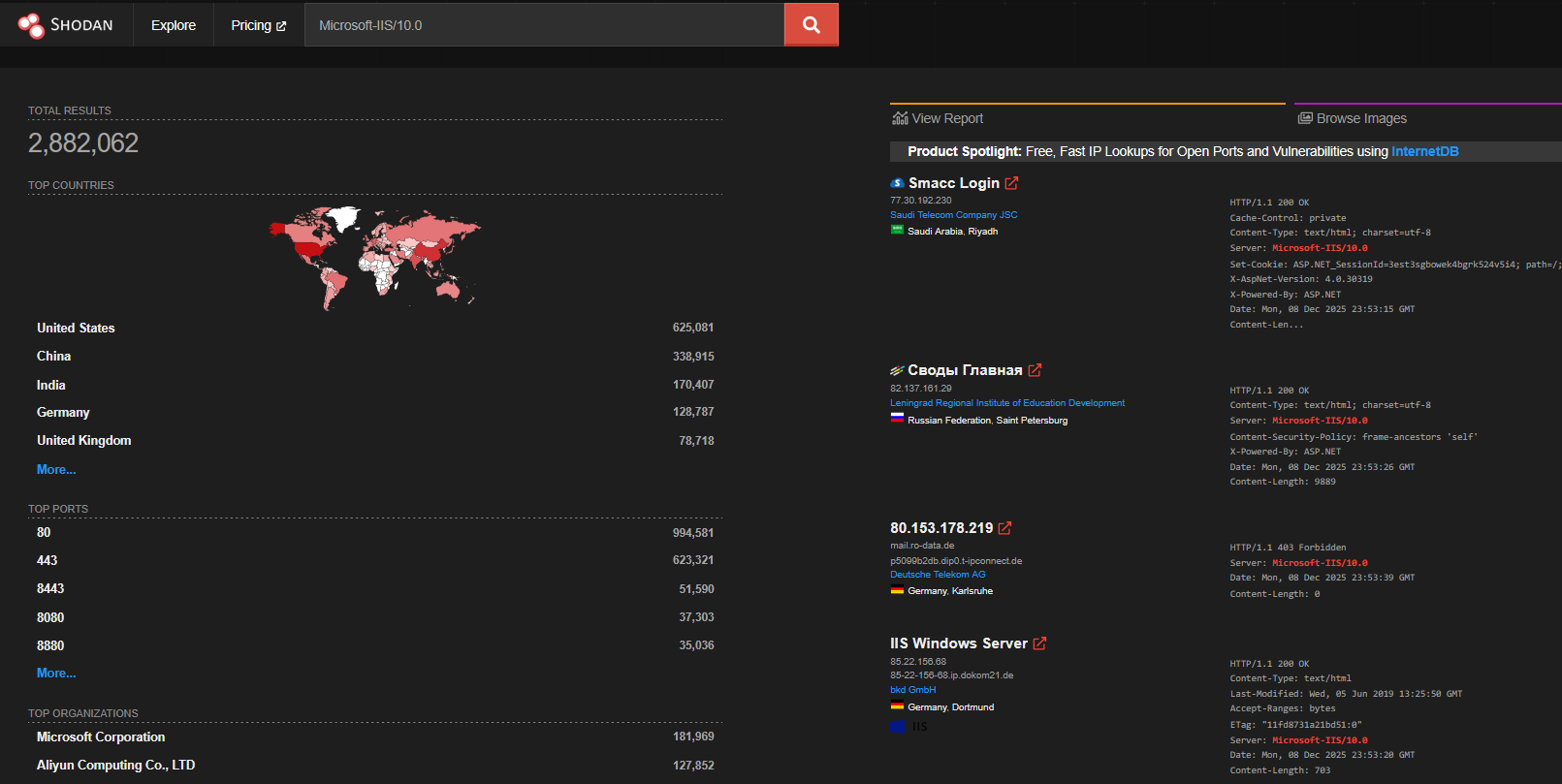
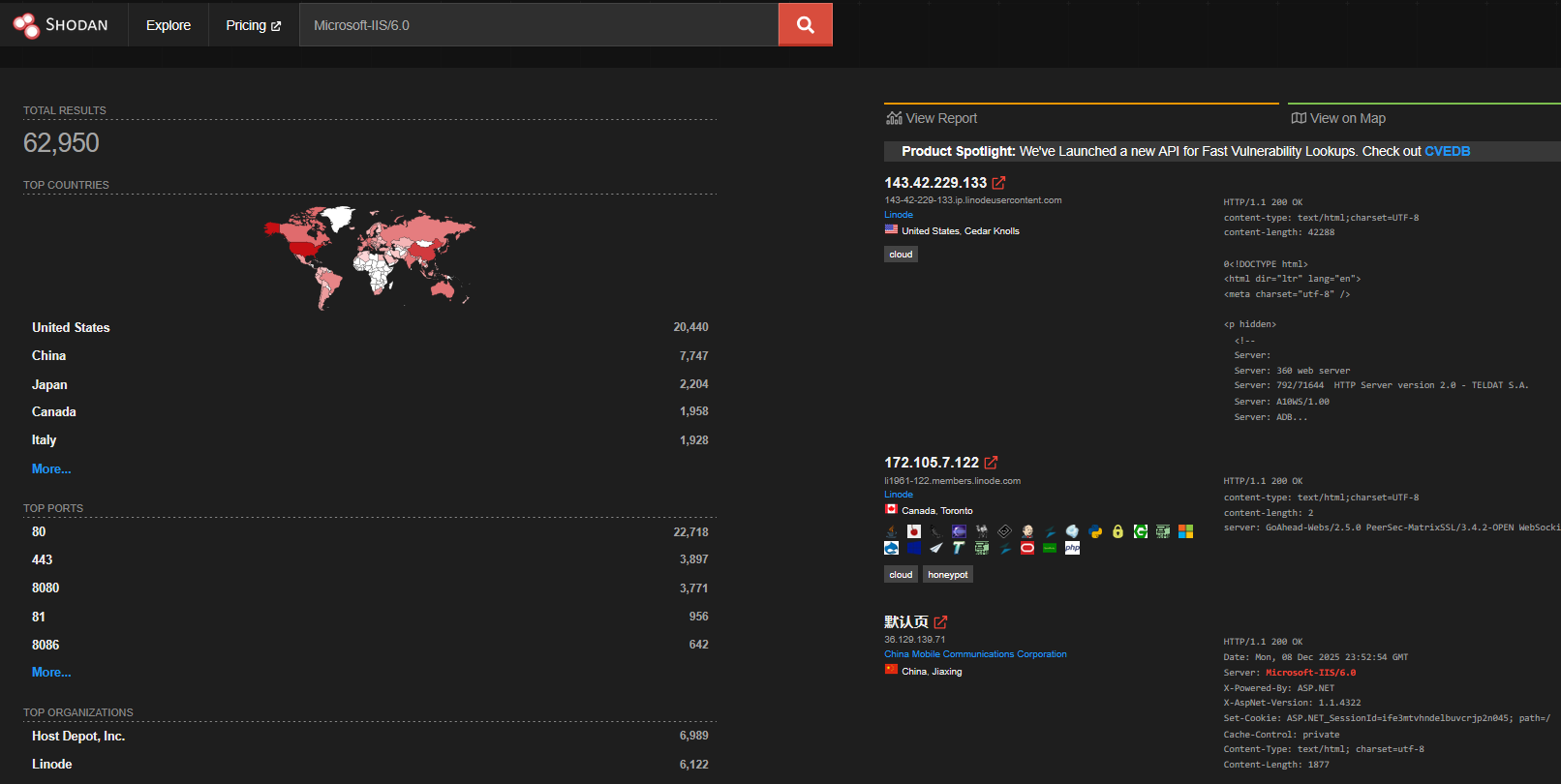
IIS often also returns headers such as X-Powered-By and X-AspNet-Version. At the time of writing IIS 10.0 is secure, but tools like Shodan show how many hosts advertise the same version.
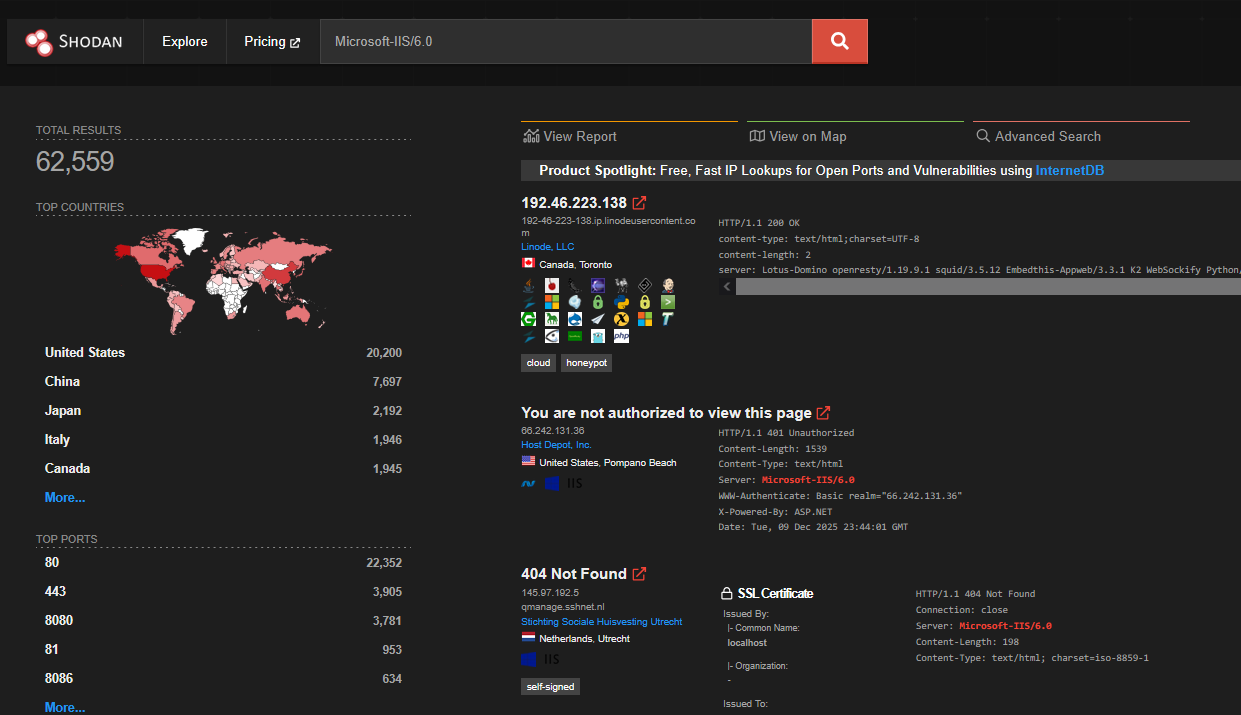
Older versions (e.g. 6.0) had long vulnerability lists. Many 6.0 hosts on Shodan are labelled honeypots.
To remove headers from responses, open IIS Manager and select the site.
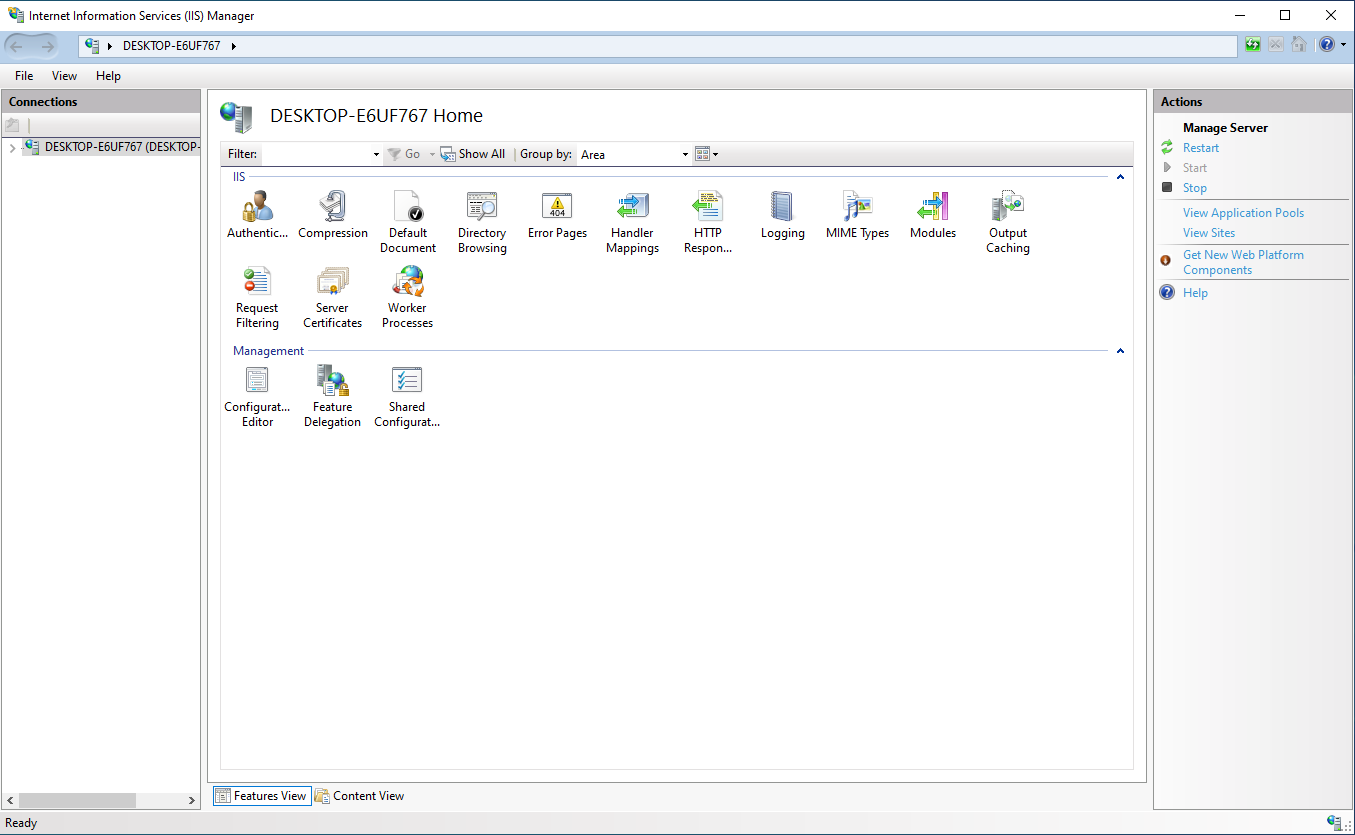
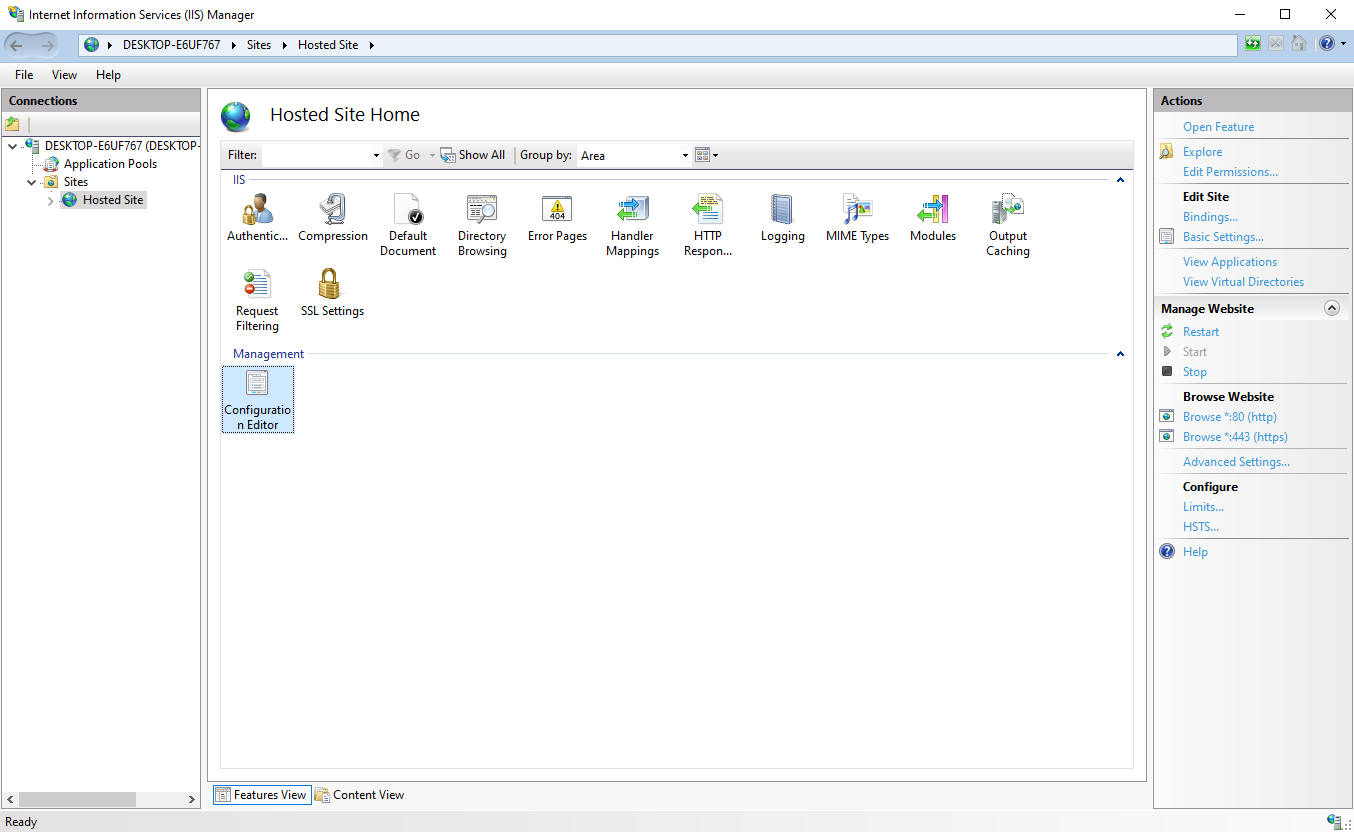
Under the server name, expand Sites, open the site that exposes the header, then double-click Configuration Editor to access server variables.
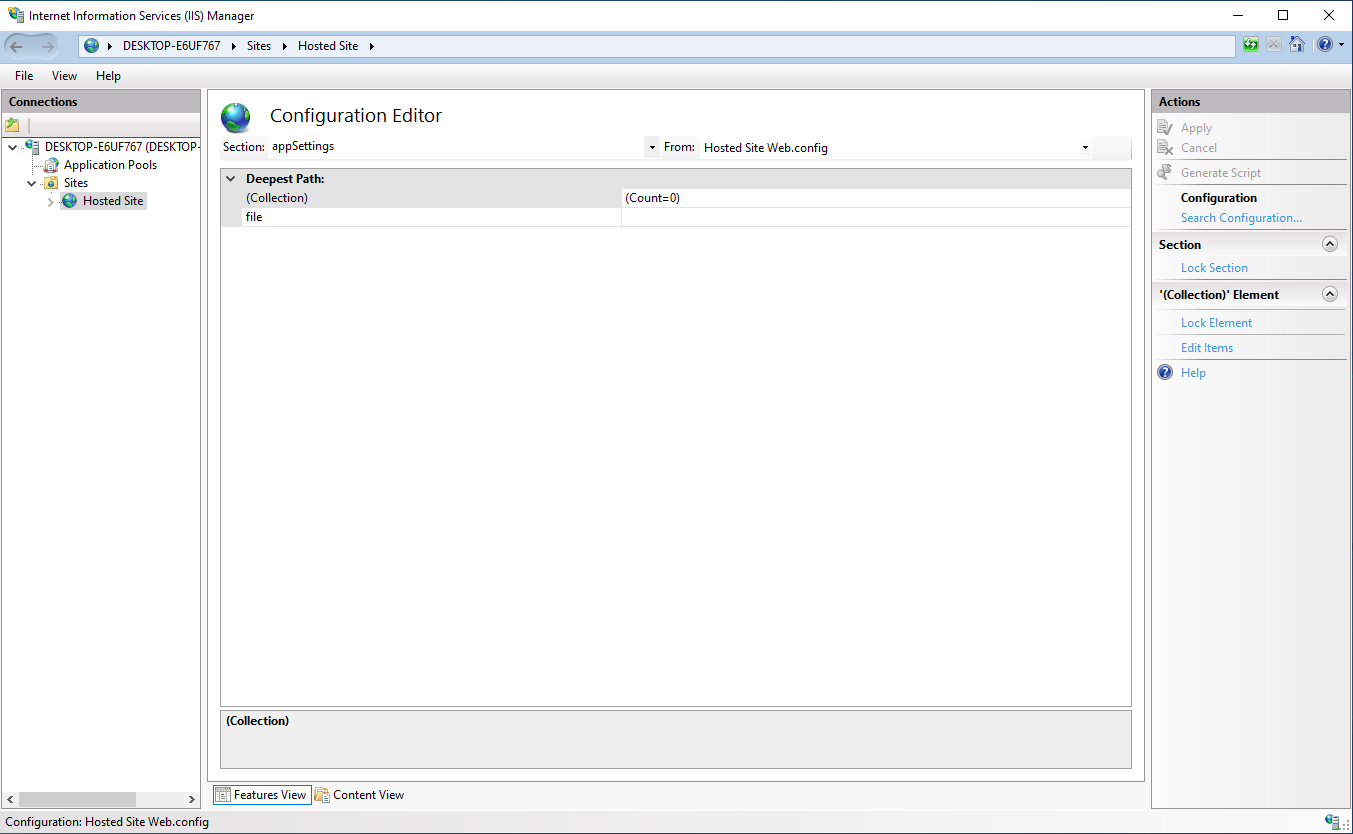
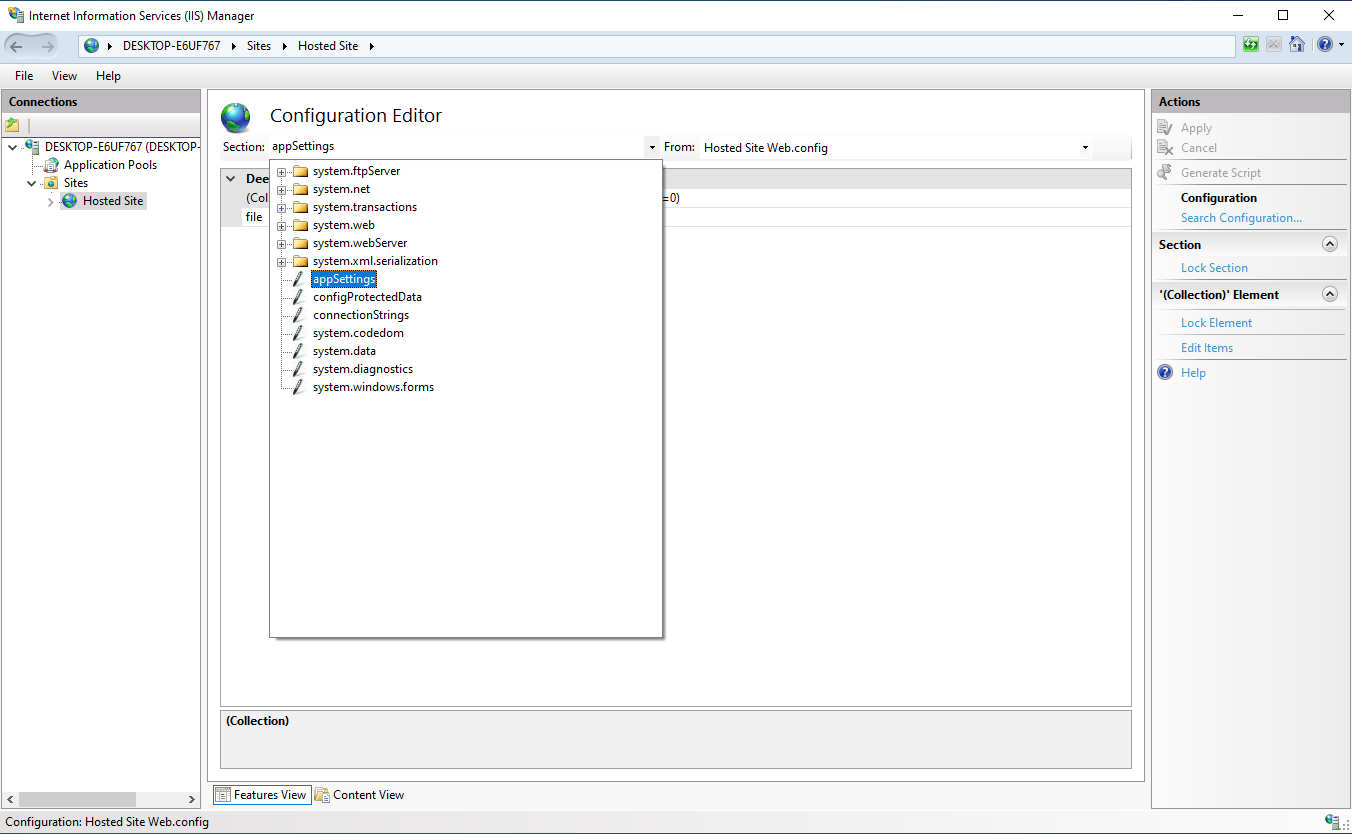
In the Section dropdown, choose appSettings.
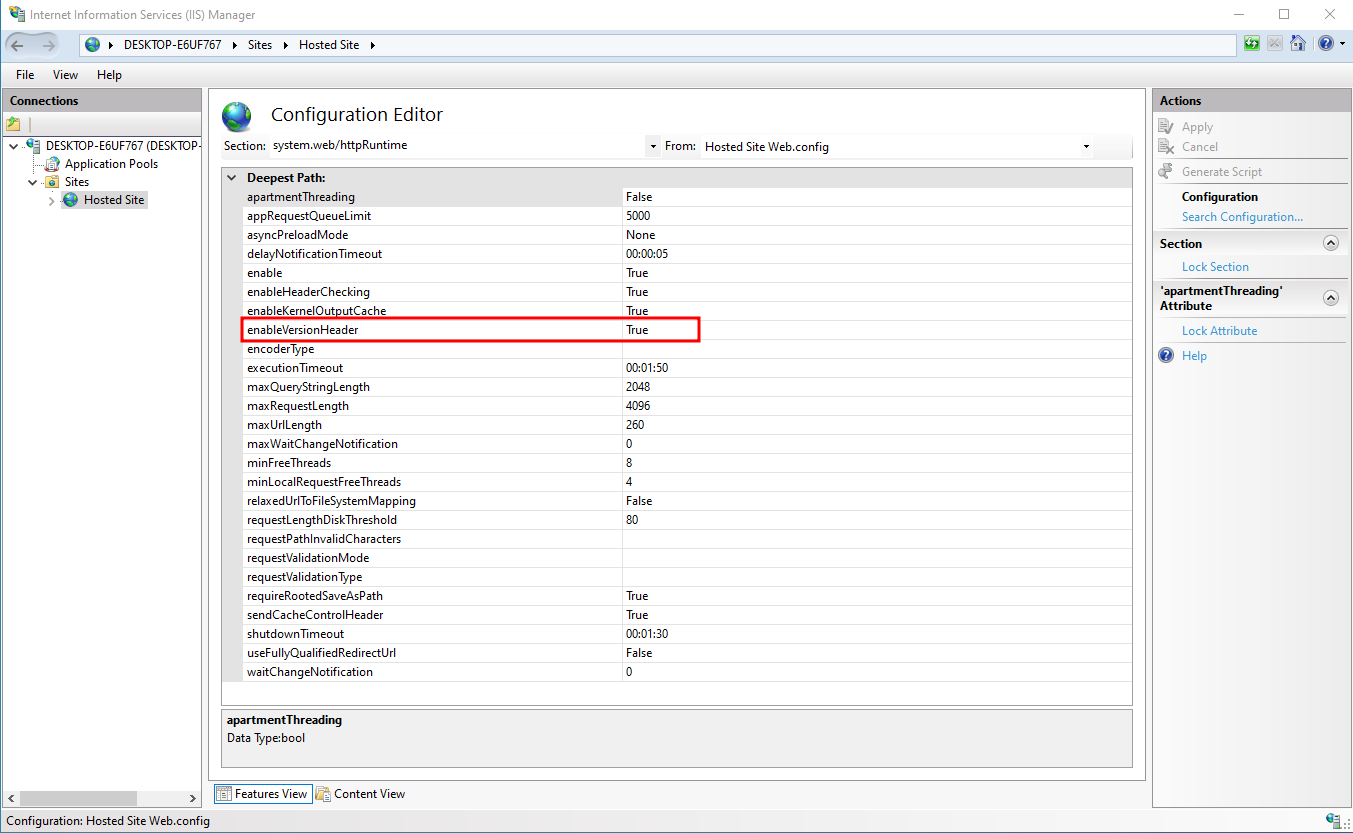
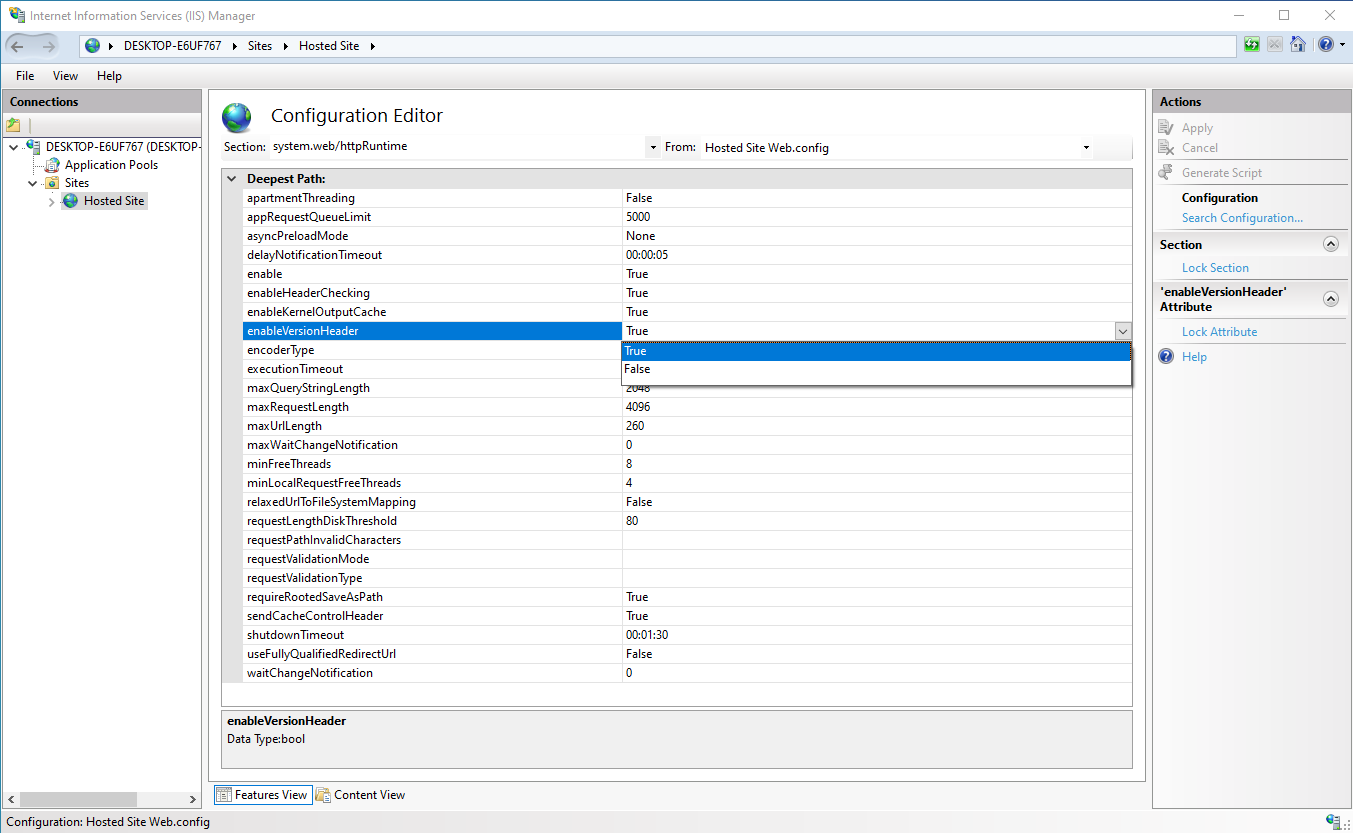
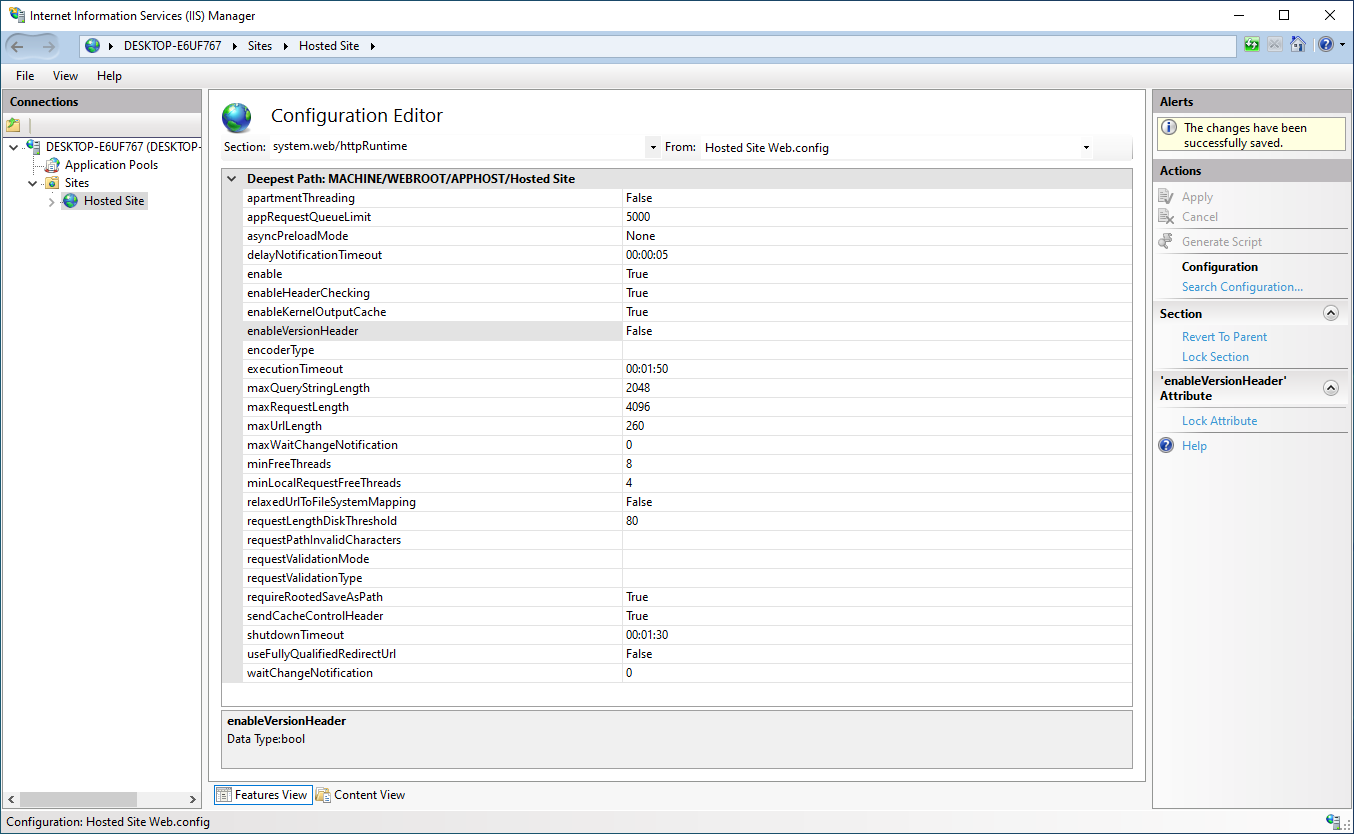
Find enableVersionHeader (often True). Set it to False to remove version headers.
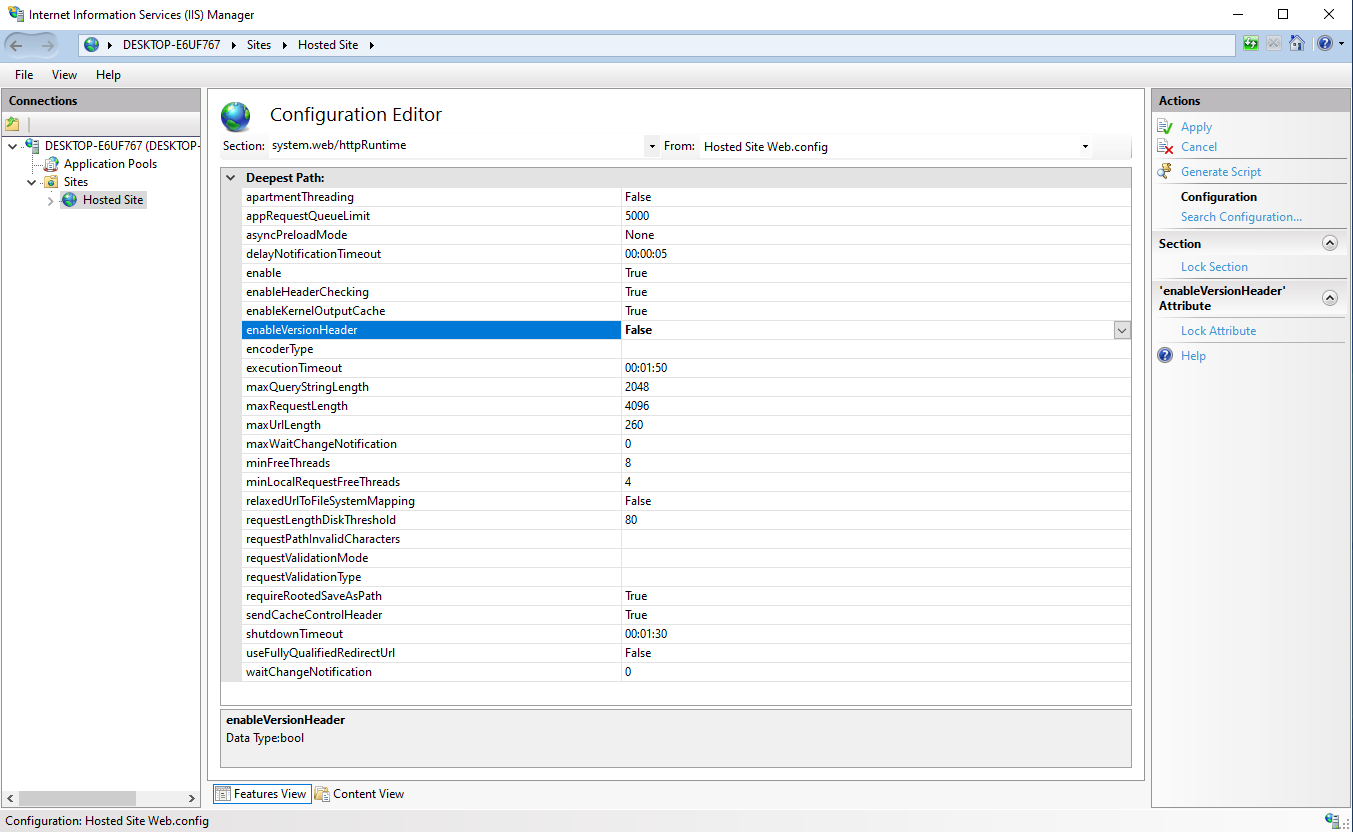
Click Apply (top right). You should see “The changes have been successfully saved.”
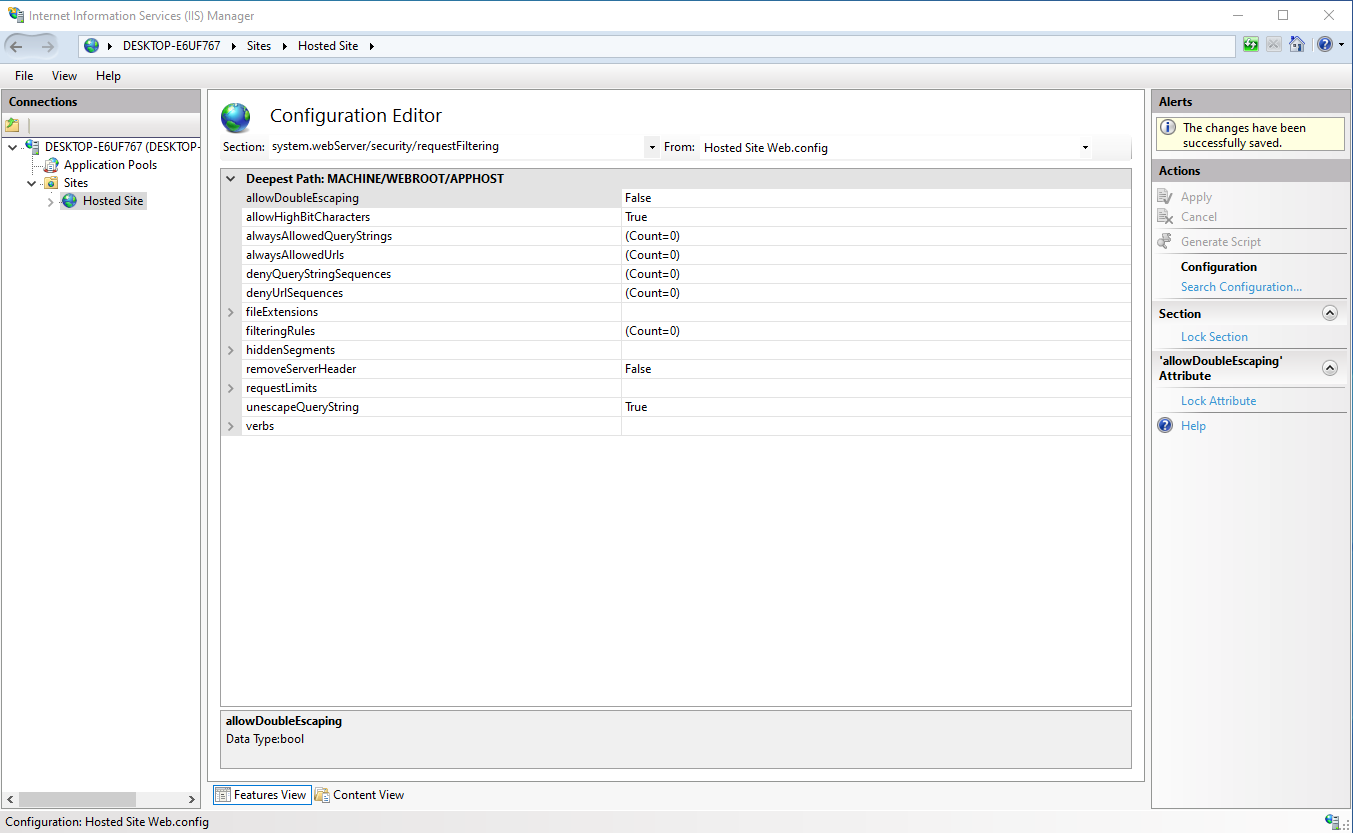
To remove the Server header, use the same Section menu: system.webServer > security > requestFiltering. Set removeServerHeader to True, then Apply again.
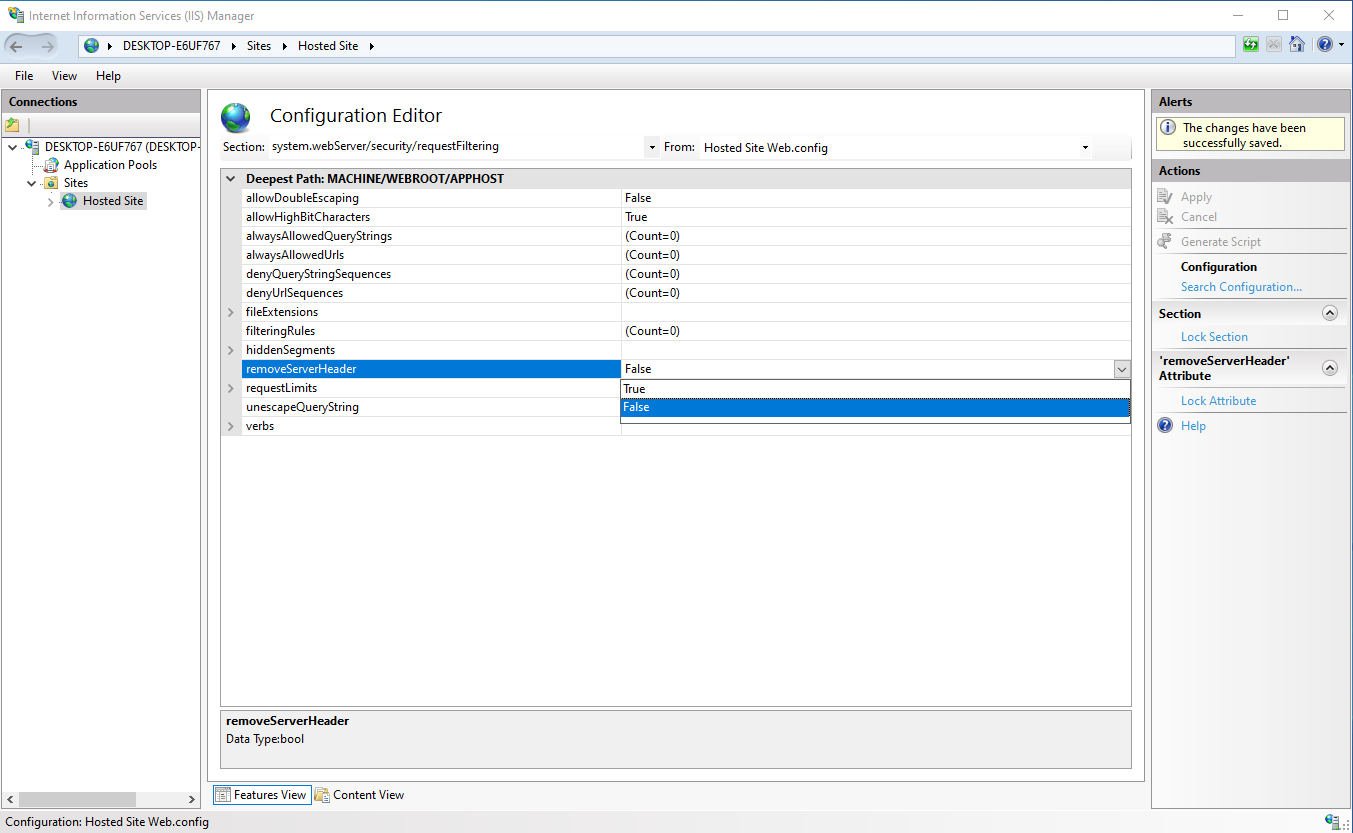
Save the changes like before and now the IIS webserver doesn't respond with any unneeded server information.